1. ObsoleteAttribute
ObsoleteAttribute applies to all program elements except assemblies, modules, parameters, and return values. Marking an element as obsolete informs users that the element will be removed in future versions of the product.
Message property contains a string that will be displayed when the attribute assignee is used. It is recommended a workaround to be provided in this description.
IsError– If set to true the compiler will indicate an error if the attribute target is used in the code.
Message property contains a string that will be displayed when the attribute assignee is used. It is recommended a workaround to be provided in this description.
IsError– If set to true the compiler will indicate an error if the attribute target is used in the code.
public static class ObsoleteExample
{
    // Mark OrderDetailTotal As Obsolete.
    [ObsoleteAttribute("This property (DepricatedOrderDetailTotal) is obsolete. Use InvoiceTotal instead.", false)]
    public static decimal OrderDetailTotal
    {
        get
        {
            return 12m;
        }
    }

    public static decimal InvoiceTotal
    {
        get
        {
            return 25m;
        }
    }

    // Mark CalculateOrderDetailTotal As Obsolete.
    [ObsoleteAttribute("This method is obsolete. Call CalculateInvoiceTotal instead.", true)]
    public static decimal CalculateOrderDetailTotal()
    {
        return 0m;
    }

    public static decimal CalculateInvoiceTotal()
    {
        return 1m;
    }
}
If we use the above class in our code, an error, and a warning are going to be displayed.
Console.WriteLine(

Official documentation– https://msdn.
2. Setting a default value for C# Auto-implemented properties via DefaultValueAttribute
DefaultValueAttribute
The attribute won’t cause a member to be automatically initialized with the specified value. Hence, you must set the initial value in your code.
The attribute won’t cause a member to be automatically initialized with the specified value. Hence, you must set the initial value in your code.
public class DefaultValueAttributeTest { public DefaultValueAttributeTest() { // Use the DefaultValue propety of each property to actually set it, via reflection. foreach (PropertyDescriptor prop in TypeDescriptor.GetProperties(this)) { DefaultValueAttribute attr = (DefaultValueAttribute)prop. Attributes[typeof( DefaultValueAttribute)]; if (attr != null) { prop.SetValue(this, attr.Value); } } } [DefaultValue(25)] public int Age { get; set; } [DefaultValue("Anton")] public string FirstName { get; set; } [DefaultValue("Angelov")] public string LastName { get; set; } public override string ToString() { return string.Format("{0} {1} is {2}.", this.FirstName, this.LastName, this.Age); } }
The auto-implemented properties are initialized in the constructor of the class via reflection. The code iterates through all properties of the class and set them their default value if the DefaultValueAttribute is present.
Official documentation– https://msdn.
3. DebuggerBrowsableAttribute
Determines if and how a member is displayed in the debugger variable windows.
public static class DebuggerBrowsableTest { private static string squirrelFirstNameName; private static string squirrelLastNameName; // The following DebuggerBrowsableAttribute prevents the property following it // from appearing in the debug window for the class. [DebuggerBrowsable(DebuggerBrowsableState.Never)] public static string SquirrelFirstNameName { get { return squirrelFirstNameName; } set { squirrelFirstNameName = value; } } [DebuggerBrowsable( DebuggerBrowsableState. Collapsed)] public static string SquirrelLastNameName { get { return squirrelLastNameName; } set { squirrelLastNameName = value; } } }
If you use the sample class in your code and try to step through it via the debugger (F11), you will notice that the code is just executing.
DebuggerBrowsableTest.
Official documentation– https://msdn.
4. ?? Operator
One of my favorite “underutilized features of C#” is the ?? operator. I’m using it heavily in my code.
The ?? operator returns the left-hand operand if it is not null, or else it returns the right operand. A nullable type can contain a value, or it can be undefined. The ?? operator defines the default value to be returned when a nullable type is assigned to a non-nullable type.
int? x = null;
int y = x ?? -1;
Console.WriteLine("y now equals -1 because x was null => {0}", y);
int i = DefaultValueOperatorTest.
5. Curry and Partial methods
Curry– In mathematics and computer science, currying is the technique of translating the evaluation of a function that takes multiple arguments (or a tuple of arguments) into evaluating a sequence of functions, each with a single argument.
In order to be implemented via C#, the power of the extension methods is used.
public static class CurryMethodExtensions
{
    public static Func>> Curry(this Func f)
    {
        return a => b => c => f(a, b, c);
    }
}
The curry extension method usage is a little bit overwhelming at first.
Func<int, int, int, int> addNumbers = (x, y, z) => x + y + z;
var f1 = addNumbers.Curry();
Func<int, Func<int, int>> f2 = f1(3);
Func<int, int> f3 = f2(4);
Console.WriteLine(f3(5));
The types returned by the different methods can be exchanged with the var keyword.
Official documentation– https://en.
Partial – in computer science, partial application (or partial function application) refers to the process of fixing a number of arguments to a function, producing another function of smaller arity.
public static class CurryMethodExtensions
{
    public static Func Partial(this Func f, A a, B b)
    {
        return c => f(a, b, c);
    }
}
The partial extension method usage is more straightforward than the curry one.
Func<int, int, int, int> sumNumbers = (x, y, z) => x + y + z;
Func<int, int> f4 = sumNumbers.Partial(3, 4);
Console.WriteLine(f4(5));
Again the types of the delegates can be declared with the var keyword.
Official documentation– https://en.
6. WeakReference
A weak reference allows the garbage collector to collect an object while still allowing an application to access the object. If you need the object, you can still obtain a strong reference to it and prevent it from being collected.
WeakReferenceTest hugeObject = new WeakReferenceTest();
hugeObject.SharkFirstName = "Sharky";
WeakReference w = new WeakReference(hugeObject);
hugeObject = null;
GC.Collect();
Console.WriteLine((w.Target as WeakReferenceTest).
If the garbage collector is not called explicitly, there will be significant chance the weak reference to be still assigned.
7. Lazy
Use lazy initialization to defer the creation of a large or resource-intensive object, or the execution of a resource-intensive task, particularly when such creation or execution might not occur during the lifetime of the program.
public abstract class ThreadSafeLazyBaseSingleton
    where T : new()
{
    private static readonly Lazy lazy = new Lazy(() => new T());

    public static T Instance
    {
        get
        {
            return lazy.Value;
        }
    }
}
Official documentation– https://msdn.
8. BigInteger
The BigInteger type is an immutable type that represents an arbitrarily large integer whose value, in theory, has no upper or lower bounds. This type differs from the other integral types in the .NET Framework, which have a range indicated by their MinValue and MaxValue properties.
Note: Because the BigInteger type is immutable and because it has no upper or lower bounds, an OutOfMemoryException can be thrown for any operation that causes a BigInteger value to grow too large.
Note: Because the BigInteger type is immutable and because it has no upper or lower bounds, an OutOfMemoryException can be thrown for any operation that causes a BigInteger value to grow too large.
string positiveString = "91389681247993671255432112000
Official documentation– https://msdn.
9. Undocumented C# Keywords __arglist __reftype __makeref __refvalue
I’m not sure that these can be treated as underutilized features of C# because they are undocumented, and you should be careful with them. Probably there isn’t a documentation for a reason. Maybe they are not adequately tested. However, they are colored by the Visual Studio editor and recognized as official keywords.
You can create a typed reference from a variable by using the __makeref keyword. The original type of the variable represented by the typed reference can be extracted using the __reftype keyword. Lastly, the value can be obtained from the TypedReference using the __refvalue keyword. The __arglist has similar behavior to the keyword params- you can access parameters lists.
int i = 21;
TypedReference tr = __makeref(i);
Type t = __reftype(tr);
Console.WriteLine(t.ToString()
In order to be able to use __arglist you need the ArglistTest class.
public static class ArglistTest { public static void DisplayNumbersOnConsole(__arglist) { ArgIterator ai = new ArgIterator(__arglist); while (ai.GetRemainingCount() > 0) { TypedReference tr = ai.GetNextArg(); Console.WriteLine( TypedReference.ToObject(tr)); } } }
Remarks the ArgIterator object enumerates the argument list starting from the first optional argument, this constructor is provided specifically for use with the C/C++ programming language.
Reference– http://www.
10. Environment.NewLine
Gets the newline string defined for this environment.
Console.WriteLine("NewLine: {0} first line{0} second line{0} third line", Environment.NewLine);
Official documentation– https://msdn.
11. ExceptionDispatchInfo
Represents an exception whose state is captured at a certain point in code. You can use the ExceptionDispatchInfo.
ExceptionDispatchInfo possibleException = null;
try
{
int.Parse("a");
}
catch (FormatException ex)
{
possibleException = ExceptionDispatchInfo.Capture(
The caught exception can be thrown again in another method or even in another thread.
Official documentation– https://msdn.
12. Environment.FailFast()
If you want to exit your program without calling any finally blocks or finalizers use FailFast.
string s = Console.ReadLine();
try
{
    int i = int.Parse(s);
    if (i == 42) Environment.FailFast("Special number entered");
}
finally
{
    Console.WriteLine("Program complete.");
}
If i equals 42 the finally block won’t be executed.
13. Debug.Assert & Debug.WriteIf & Debug.Indent
Debug.Assert– checks for a condition; if the condition is false, outputs messages and displays a message box that shows the call stack.
Debug.Assert(1 == 0, "The numbers are not equal! Oh my god!");
If the assert fails in Debug mode, the below alert is displayed, containing the specified message.

Debug.WriteIf– writes information about the debug to the trace listeners in the Listeners collection if a condition is true.
Debug.WriteLineIf(1 == 1, "This message is going to be displayed in the Debug output! =)");
Debug.Indent/Debug.Unindent– increases the current IndentLevel by one.
Debug.WriteLine("What are ingredients to bake a cake?");
Debug.Indent();
Debug.WriteLine("1. 1 cup (2 sticks) butter, at room temperature.");
Debug.WriteLine("2 cups sugar");
Debug.WriteLine("3 cups sifted self-rising flour");
Debug.WriteLine("4 eggs");
Debug.WriteLine("1 cup milk");
Debug.WriteLine("1 teaspoon pure vanilla extract");
Debug.Unindent();
Debug.WriteLine("End of list");
If we want to display the ingredients for a cake in the Debug Output Window, we can use the code above.

14. Parallel.For & Parallel.Foreach
I’m not sure if we can add these to the underutilized features of .NET list because they are heavily used in the TPL (Task Parallel Library). However, I’m listing them here because I like them a lot and utilize their power in my multithreaded applications.
Parallel.For– executes a for loop in which iterations may run in parallel.
int[] nums = Enumerable.Range(0, 1000000).ToArray();
long total = 0;

// Use type parameter to make subtotal a long, not an int
Parallel.For<long>(0, nums.Length, () => 0, (j, loop, subtotal) =>
{
    subtotal += nums[j];
    return subtotal;
},
    (x) => Interlocked.Add(ref total, x)
);

Console.WriteLine("The total is {0:N0}", total);
Interlocked.Add method adds two integers and replaces the first integer with the sum, as an atomic operation.
Parallel.Foreach– executes a foreach (For Each in Visual Basic) operation in which iterations may run in parallel.
int[] nums = Enumerable.Range(0, 1000000).ToArray();
long total = 0;

Parallel.ForEach<int, long>(nums, // source collection
                            () => 0, // method to initialize the local variable
    (j, loop, subtotal) => // method invoked by the loop on each iteration
    {
        subtotal += j; //modify local variable
        return subtotal; // value to be passed to next iteration
    },
    // Method to be executed when each partition has completed.
    // finalResult is the final value of subtotal for a particular partition.
(finalResult) => Interlocked.Add(ref total, finalResult));

Console.WriteLine("The total from Parallel.ForEach is {0:N0}", total);
15. IsInfinity
Returns a value indicating whether the specified number evaluates to negative or positive infinity.
Console.WriteLine("IsInfinity(
Official documentation– https://msdn.
1. dynamic Type
The dynamic type enables the operations in which it occurs to bypass compile-time type checking. Instead, these operations are resolved at run-time.
Note: Type dynamic behaves like type object in most circumstances. However, operations that contain expressions of type dynamic are not resolved or type checked by the compiler. The compiler packages together information about the process, and that information is later used to evaluate the operation at run-time. As part of the process, variables of type dynamic are compiled into variables of type object. Therefore, type dynamic exists only at compile-time, not at run-time.
dynamic dynamicVariable;
int i = 20;
dynamicVariable = (dynamic)i;
Console.WriteLine(
As you can see from the examples, you can assign variables from different types to a single dynamic object. You can check if a variable is of type dynamic using the ‘is’ operator. If a requested property is non-existing as on the last line of the example, a new RuntimeBinderException is thrown.
Official documentation– https://msdn.
2. ExpandoObject
Represents an object whose members can be dynamically added and removed at run-time. This is one of my favorite underutilized features of C#.
dynamic samplefootballLegendObject = new ExpandoObject();
samplefootballLegendObject.
You can not only add properties to the expando objects, but you can also add methods and delegates. In the example, I have added new AsString method through a new Action.
Official documentation– https://msdn.
3. Nullable.GetValueOrDefault Method
Retrieves the value of the current Nullable object, or the object’s default value. It is faster than ?? operator.
float? yourSingle = -1.0f;
Console.WriteLine(yourSingle.
If you don’t specify a default value as a parameter to the method, the default value of the used type is going to be used.
You can use it to create a dictionary safe Get method (return the default value if the key is not present instead of throwing an exception).
public static class DictionaryExtensions
{
    public static TValue GetValueOrDefault(this Dictionary dic, TKey key)
    {
        TValue result;
        return dic.TryGetValue(key, out result) ? result : default(TValue);
    }
}
The usage is straightforward.
Dictionary<int, string> names = new Dictionary<int, string>();
names.Add(0, "Willy");
Console.WriteLine(names.
Official documentation– https://msdn.
4. ZipFile in .NET
Provides static methods for creating, extracting, and opening zip archives.
string startPath = Path.Combine(string.Concat(
Official documentation– https://msdn.
5. C# Preprocessor Directives
5.1. #warning
#warning lets you generate a level one warning from a particular location in your code.
#if LIVE
#warning A day without sunshine is like, you know, night.
#endif

Official documentation– https://msdn.
5.2. #error
#error allows you to make an error from a particular location in your program.
#error Deprecated code in this method.

Official documentation– https://msdn.
5.3. #line
#line lets you modify the compiler’s line number and (optionally) the file name output for errors and warnings.
#line 100 "Pandiculation"
            int i;    // CS0168 on line 101
            int j;    // CS0168 on line 102
#line default
            char c;   // CS0168 on line 288
            float f;  // CS0168 on line 289

Official documentation– https://msdn.
5.4. #region
#region enables you to specify a block of code that you can expand or collapse when using the outlining feature of the Visual Studio Code Editor.
#region Thomas Sowell Quote
Console.WriteLine("It takes considerable knowledge just to realize the extent of your own ignorance.");
#endregion

Official documentation– https://msdn.
6. Stackalloc
The stackalloc keyword is used in an unsafe code context to allocate a block of memory on the stack.
The following example calculates and displays the first 20 numbers in the Fibonacci sequence. Each number is the sum of the previous two numbers. In the code, a block of memory of sufficient size to contain 20 elements of type int is allocated on the stack, not the heap. The address of the block is stored in the pointer fib. This memory is not subject to garbage collection. Therefore, it does not have to be pinned (by using fixed). The lifetime of the memory block is limited to the life of the method that defines it. You cannot free the memory before the method returns.
static unsafe void Fibonacci()
{
    const int arraySize = 20;
    int* fib = stackalloc int[arraySize];
    int* p = fib;
    *p++ = *p++ = 1;
    for (int i = 2; i < arraySize; ++i, ++p)
    {
        *p = p[-1] + p[-2];
    }
    for (int i = 0; i < arraySize; ++i)
    {
        Console.WriteLine(fib[i]);
    }
}
The sole reason to use stackalloc is performance (either for computations or interop). By using stackalloc instead of a heap allocated array, you create less GC pressure (the GC needs to run less). You don’t need to pin the arrays down, it’s faster to allocate than a heap array.
For more information about the unsafe code, see Unsafe Code and Pointers (C# Programming Guide).
To set this compiler option in the Visual Studio development environment
- Open the project’s Properties page.
- Click the Build property page.
- Select the Allow Unsafe Code check box.

Official documentation– https://msdn.
7. Execute VB code via C#
Generates and calls Office Visual Basic macros from a C# .NET Automation client.
I used it in the past to fetch and display data from Google Analytics in Excel.
private static string GetMacro(int macroId, int row, int endCol)
{
StringBuilder sb = new StringBuilder();
string range = "ActiveSheet.Range(Cells(" + row + "," + 3 +
"), Cells(" + row + "," + (endCol + 3) + ")).Select";
sb.AppendLine("Sub Macro" + macroId + "()");
sb.AppendLine("On Error Resume Next");
sb.AppendLine(range);
sb.AppendLine("ActiveSheet.
Official documentation– https://
8. volatile
The volatile keyword indicates that a field might be modified by multiple threads that are executing at the same time. Fields that are declared volatile are not subject to compiler optimizations that assume access by a single thread. This ensures that the most up-to-date value is present in the field at all times.
volatile bool shouldPartyContinue = true;
public static unsafe void Main(string[] args)
{
Program firstDimension = new Program();
Thread secondDimension = new Thread(firstDimension.
If the variable shouldPartyContinue
Official documentation– https://msdn.
9. global::
The ability to access a member of the global namespace is useful when the member might be hidden by another entity of the same name. This is one of my favored underutilized features of .NET.
public static unsafe void Main(string[] args)
{
global::System.Console.
Official documentation– https://msdn.
10. DebuggerDisplayAttribute
Determines how a class or field is displayed in the debugger variable windows.
[DebuggerDisplay("{
In the above example, the method DebuggerDisplay will be used to calculate the value that is going to be presented in the Debugger window.
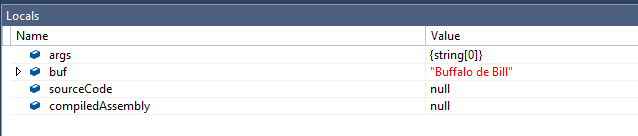
Also, you can use different C# expressions directly in the attribute.
[DebuggerDisplay("Age {Age > 0 ? Age : 5}")]
public class DebuggerDisplayTest
{
private string squirrelFirstNameName;
private string squirrelLastNameName;
public string SquirrelFirstNameName
{
get
{
return squirrelFirstNameName;
}
set
{
squirrelFirstNameName = value;
}
}
[DebuggerBrowsable(
If the age property is larger than zero, the actual age is going to be displayed otherwise five is used.
Official documentation– https://msdn.
11. DebuggerStepThroughAttribute
Instructs the debugger to step through the code instead of stepping into the code.
[DebuggerStepThroughAttribute]
public class DebuggerDisplayTest
{
private string squirrelFirstNameName;
private string squirrelLastNameName;
public string SquirrelFirstNameName
{
get
{
return squirrelFirstNameName;
}
set
{
squirrelFirstNameName = value;
}
}
[DebuggerBrowsable(
Official documentation– https://msdn.
12. Conditional
It makes the execution of a method dependent on a preprocessing identifier. The Conditional attribute is an alias for ConditionalAttribute, and can be applied to a method or an attribute class.
public static unsafe void Main(string[] args)
{
    StartBugsParty();
}

[Conditional("LIVE")]
public static void StartBugsParty()
{
    Console.WriteLine("Let the bugs free. Start the Party.");
}
In order the above code to be executed #define LIVE should be added at the beginning of the C# file.
Official documentation– https://msdn.
13. using Directive VS 2015
You can access static members of a type without having to qualify the access to the type name.
First add the following using clauses.
using static System.Math;
using static System.Console;

WriteLine(Sqrt(42563));
A using-alias directive cannot have an open generic type on the right-hand side. For example, you cannot create a using alias for a List, but you can create one for a List.
using IntList = System.Collections.Generic.
Personally I believe that the last feature makes the code a little bit unreadable, so I suggest you to think twice before use it.
Official documentation– https://msdn.
14. Flags Enum Attribute
Flags enumerations are used for masking bit fields and doing bitwise comparisons. They are the correct design to use when multiple enumeration values can be specified at the same time.
[Flags]
public enum Minions
{
    Stuart = 1,
    Kevin = 2,
    Bob = 4,
    Dave = 8
}
It is also important to note that Flags does not
var minionsNames = (Minions.Bob | Minions.Dave).ToString();
// Displays 'Bob, Dave'
Console.WriteLine(
When you retrieve the value, you are bitwise AND’ing the values.
Note: You cannot use the None enumerated constant in a bitwise AND operation to test for a flag because the result is always zero. However, you can perform a logical, not a bitwise, comparison between the numeric value and the None enumerated constant to determine whether any bits in the numeric value are set.
Official documentation– https://msdn.
15. Dynamically Compile and Execute C# Code
15.1. CodeDOM
The CodeDOM provides types that represent many common types of source code elements. You can design a program that builds a source code model using CodeDOM elements to assemble an object graph. This object graph can be rendered as source code using a CodeDOM code generator for a supported programming language. The CodeDOM can also be used to compile source code into a binary assembly.
public static void Main(string[] args)
{
var sourceCode = @"class HelloKittyPrinter
{
public void Print()
{
System.Console.WriteLine(""Hel
15.2. Roslyn
The .NET Compiler Platform (“Roslyn”) provides open-source C# and Visual Basic compilers with rich code analysis APIs. It enables building code analysis tools with the same APIs that are used by Visual Studio.
First you need to install the NuGet package Microsoft.CodeAnalysis
You can find the whole source code and useful examples in the project’s official GitHub page.
public static void Main(string[] args)
{
var sourceCode = @"class HelloKittyPrinter
{
public void Print()
{
System.Console.WriteLine(""Hel
To execute the generated code, you can use the following method.
private static void ExecuteFromAssembly(Assembly assembly)
{
Type helloKittyPrinterType = assembly.GetType("HelloKittyPr

No comments:
Post a Comment